This is default featured slide 1 title

Go to Blogger edit html and find these sentences.Now replace these sentences with your own descriptions.

This is default featured slide 2 title

Go to Blogger edit html and find these sentences.Now replace these sentences with your own descriptions.

This is default featured slide 3 title

Go to Blogger edit html and find these sentences.Now replace these sentences with your own descriptions.

This is default featured slide 4 title

Go to Blogger edit html and find these sentences.Now replace these sentences with your own descriptions.

This is default featured slide 5 title

Go to Blogger edit html and find these sentences.Now replace these sentences with your own descriptions.

Showing posts with label Linux. Show all posts

Thursday, November 8, 2012

My HP Pavilion DM1-4010EZ Installing Linux Mint 12 Experience

When we last left off working on our lovely new HP DM1-4010EX Sub Notebook, I had just finished installing and configuring Microsoft Windows 7 Home Premium.

Now with the windows operating system out of the way it is time to move into installing a real computer operating system on it, and for the sake of variety the choice this time will be Linux Mint 12 and Cinnamon 1.1.3.

The very first thing to do is prepare the internal hard disk drive. As I said in the previous post, all four of the Primary Partitions are used in the default configuration of this system.

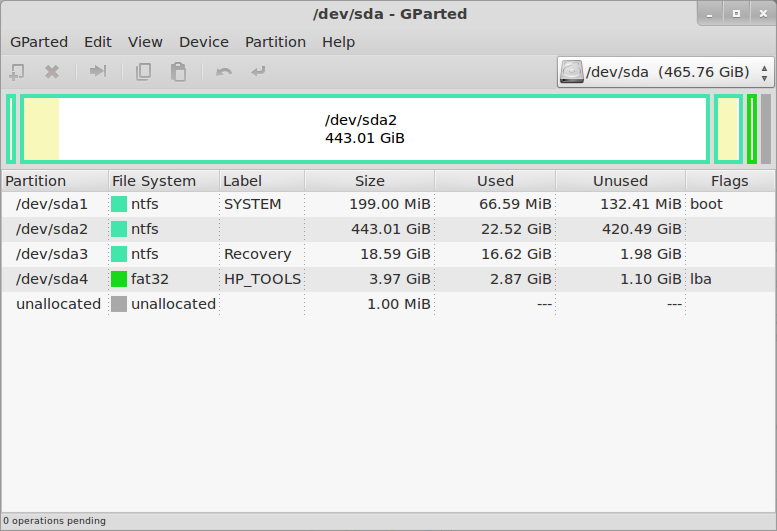
The disk layout looks like this in GParted:
HP Pavilion dm1-4010ez
So there is a tiny bootloader partition, a huge Windows C: partition, a small Windows Recovery partition, and a very small HP Tools partition. One of them has got to go, because the antiquated MBR disk labeling/management system can not have more than four partitions.

I will say this one more time... Make Sure You Have Created A Set Of Recovery DVDs. Once you delete the Recovery partition, you will never have another chance to create them.

The other consequence of deleting the Recovery partition is that you can not do the F11-Recovery procedure, if you ever really need to restore Windows you will have to do it from the DVDs.
Now we are ready to delete a partition. The obvious candidate is the Recovery partition, both because of its size and content (we know we have it copied on DVD).

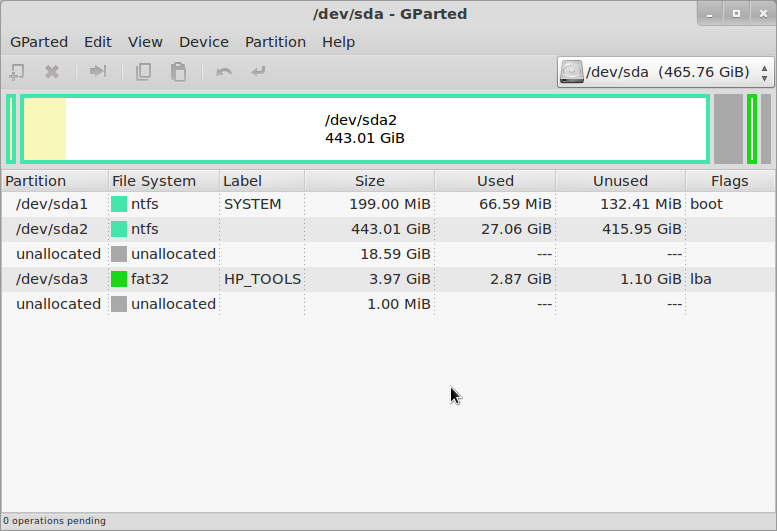
The simplest and most direct thing to do is to delete it in GParted, since we already have that running. But in this case it is probably better to go back to Windows and delete it using the HP Recovery Manager, so that it knows that the partition is gone. Either way you do it, once the partition has been deleted the disk will look like this in GParted:
HP Pavilion dm1-4010ez
Although it is quite small, that is actually enough free space to load Linux - especially if you are only "sticking your toes in the water" at this point, and want to see how it goes.

If you want more space you can just shrink the Windows partition (/dev/sda2). The next step is to create an Extended partition in the free space, and then either create two more logical partitions within that for the Linux root and swap, or just leave the extended partition empty and let the Linux installer create the partitions it wants.
It's finally time to actually install Linux Mint 12.

Download the ISO image from the Linux Mint Downloads page. I just about always use the 64-bit images now, but of course you can still use 32-bit if you want or need to, or if you are just extremely conservative. The ISO image can be converted to a bootable USB stick using the "Startup Disk Creator" utility on any running Mint 9/10/11 system, or of course it can be burned to a DVD-R (sorry, too big for CD-R).

Insert the USB stick or connect the USB DVD drive, turn on power and press F9 (the boot device selection key for HP systems). When booting from USB stick, it still stops with an error about the vesamenu not being a COM32R image, and then says "boot: ". Sigh.

I wish this didn't happen, because it confuses an awful lot of inexperienced users. All you have to do is type "live" and press return, but figuring that out can be daunting. I haven't tried burning a DVD for Mint in a long time, does this still happen when booting that way as well?
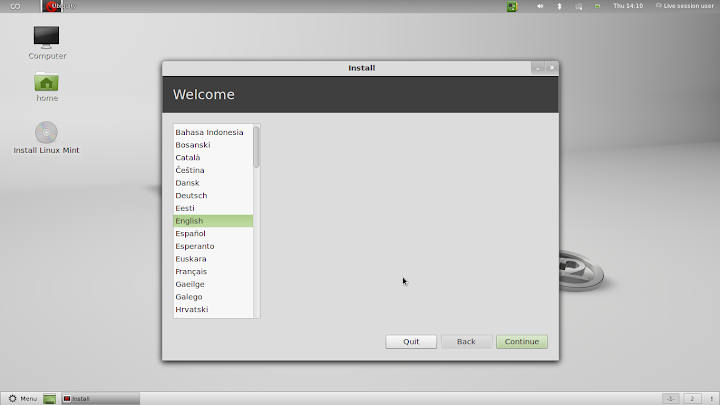
The Mint Live system then comes up, and you will be presented with a normal Mint 12 desktop. One of the icons on that desktop is "Install Linux Mint", which gets you to the Mint installer (duh). The first installer screen asks for the language, which will be used for this installation dialog and as the default for the installed system.
HP Pavilion dm1-4010ez
The next screen informs you of the status of disk space, power and Internet connection. You can do the installation just fine without an internet connection, but you really should have power connected, or at least be sure that the battery is full when you start. It's not much fun to have the system die halfway through the installation.
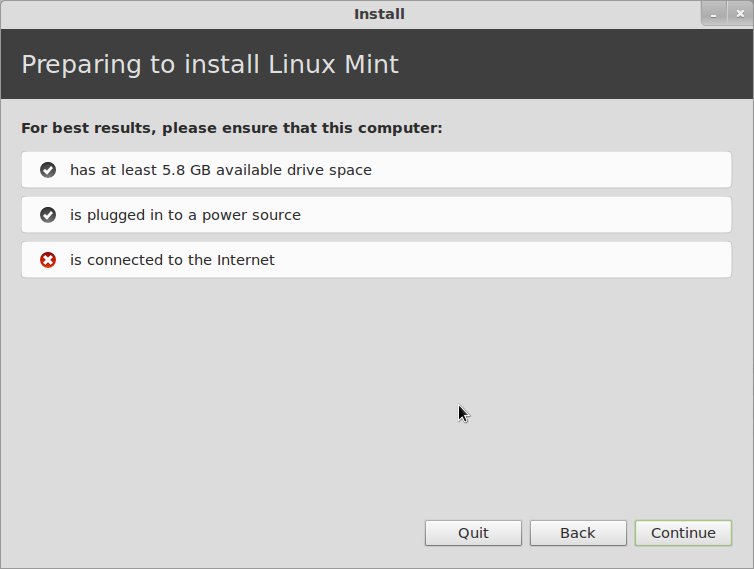
HP Pavilion dm1-4010ez
Next you get a chance to connect to a wireless network. This is useful if you want to install updates or additional packages during installation, but as I said it is not absolutely necessary, and I seldom bother with it.
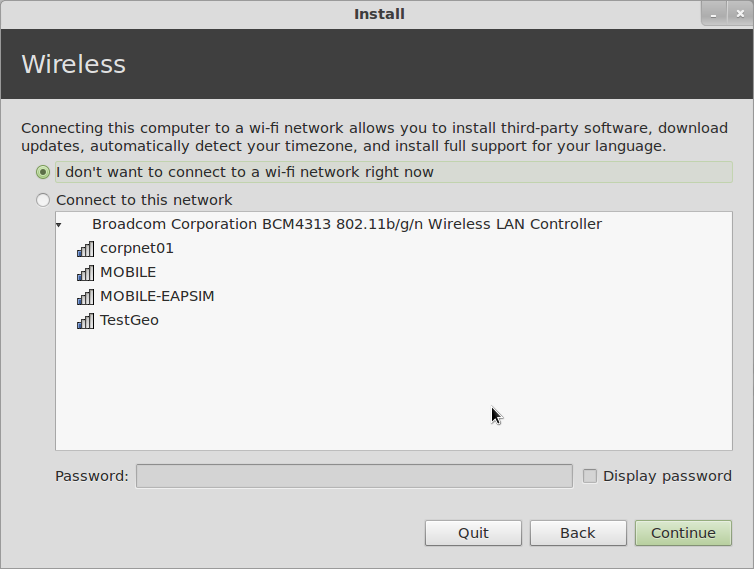
HP Pavilion dm1-4010ez
Now comes "Installation Type", which is where you define the disk allocation. If you just created an Extended Partition and left it empty, you can leave this on "Install Linux Mint Alongside Them" and it will do what is necessary. If you like to control things, you can choose "Something Else", which is what I typically do. If you want to ditch Windows and have only Linux installed, choose "Erase disk...".
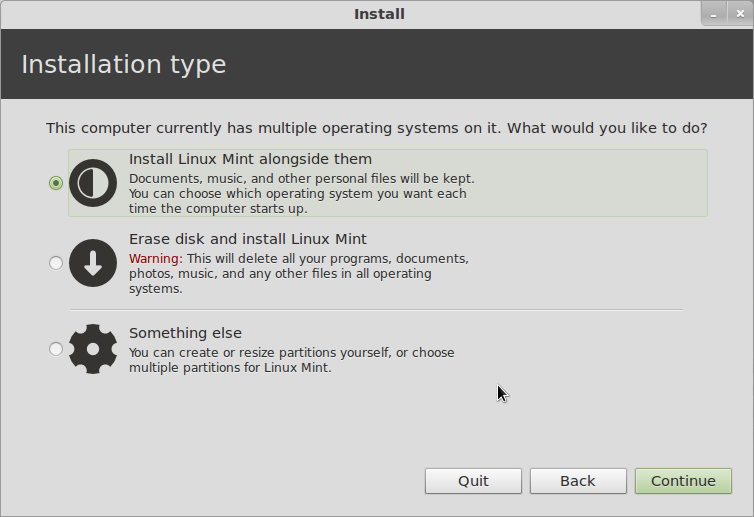
HP Pavilion dm1-4010ez
Next you can decide if you want to use the Windows bootloader or Linux GRUB. At the bottom of the window, if you leave the Device for bootloader installation on its default (which is the MBR of the hard drive), you will get Linux GRUB for a bootloader, with Windows listed as a boot option. If you change this to put the bootloader in the root partition of the installed system, you will still have the Windows bootloader, and you will have to follow the instructions I posted a while back to configure that to multi-boot Linux as well.
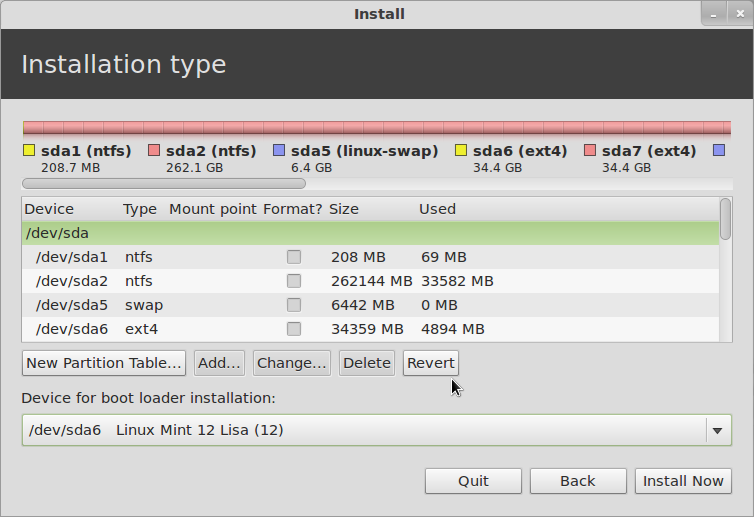
HP Pavilion dm1-4010ez
At this point the installer will actually split off and start doing the installation in the background while it continues to ask you a few more questions about the configuration. First is your time zone:
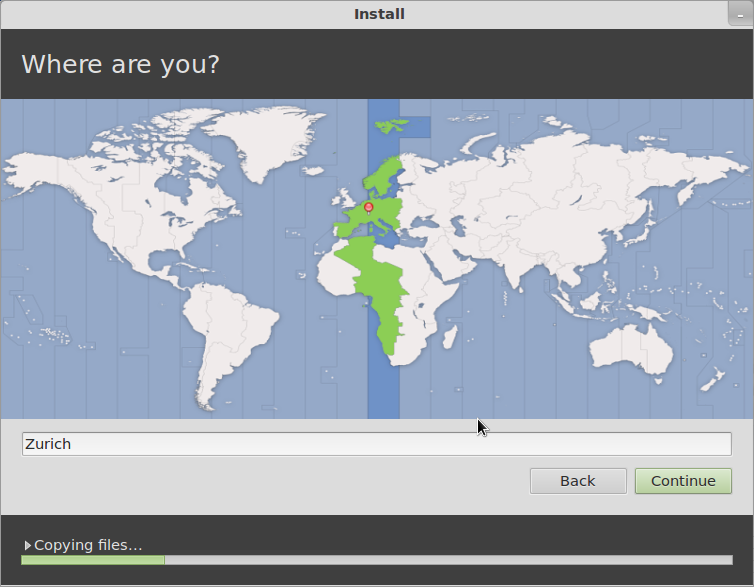
HP Pavilion dm1-4010ez
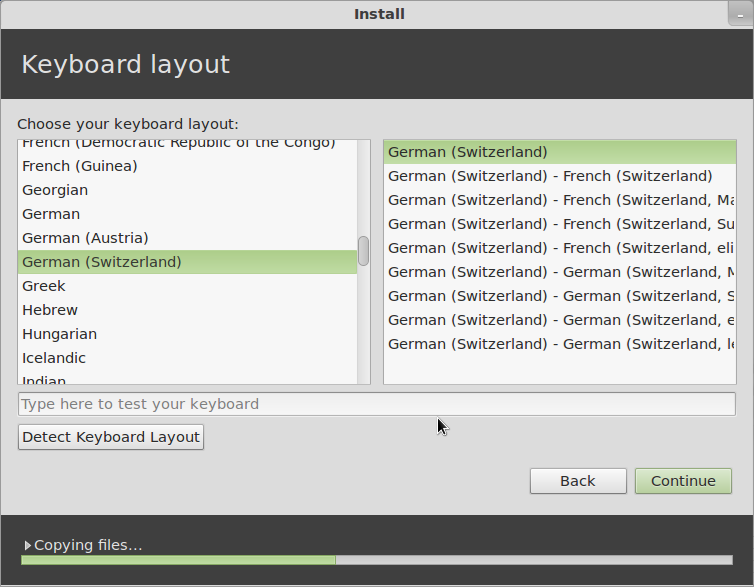
Then comes the keyboard layout...
HP Pavilion dm1-4010ez
Then comes a series of screens for the the user information.
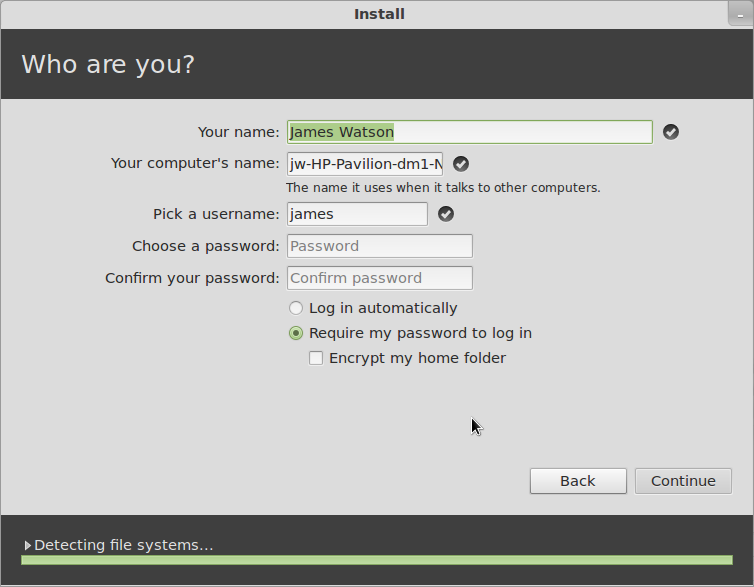
HP Pavilion dm1-4010ez
You get to choose a picture for your account - if there is anyone here who really feels that whatever random picture might be taken by the webcam while you are installing is something you might like to have on your account permanently... well, congratulations, you are doing better than I am...
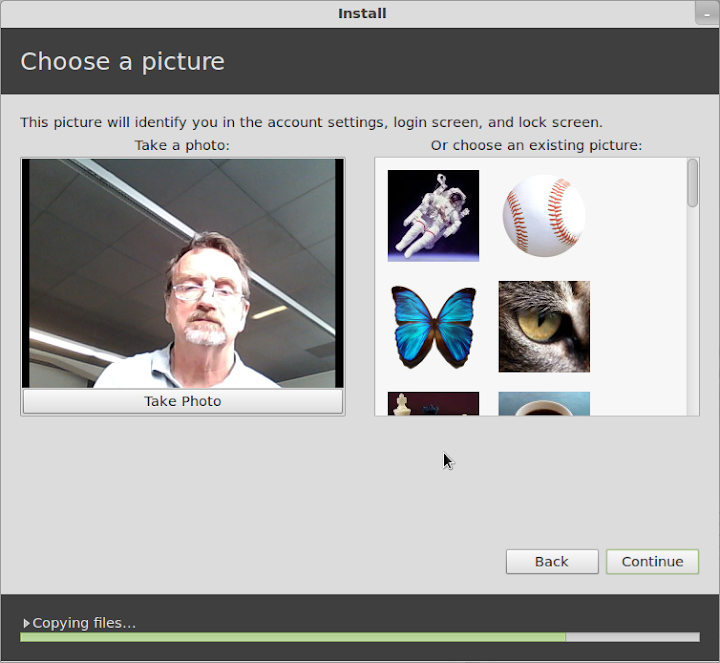
HP Pavilion dm1-4010ez
If there is anything else already on the disk that the Installer recognizes and might take over user account information from, it comes up in the next screen.
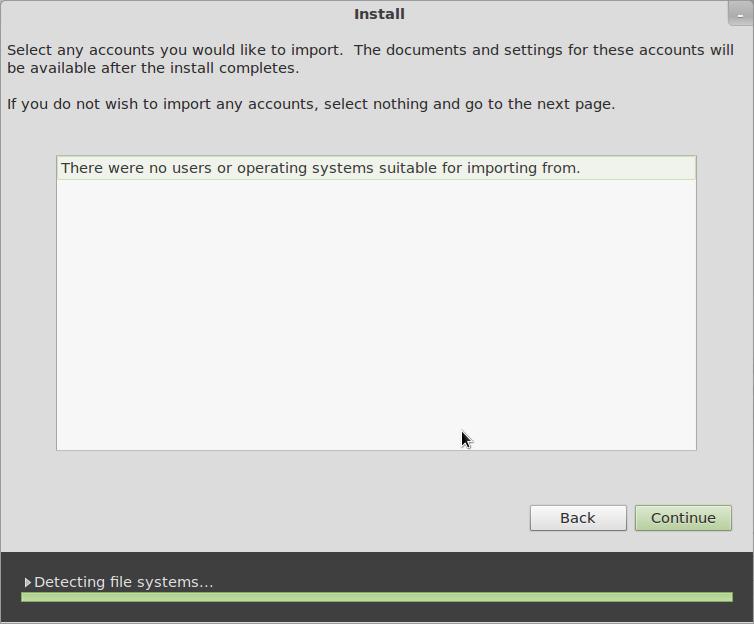
HP Pavilion dm1-4010ez
Once you have gotten this far, you will get some entertaining propaganda screens while the installation finishes. Hooray! When the installation finishes, reboot (and configure the Windows bootloader if you need to), and you'll be up and running Linux Mint 12.
That might seem like quite a long process, but each of those steps only takes a short time, and the entire installation can be done in 30 minutes if you are reading everything very carefully and thinking about the answers, or as little as 15 minutes or less once you are familiar with it and you're doing it on "autopilot".
Now comes the good news - it works! As far as I can tell, with one small exception, everything works very nicely. Screen resolution is correct (1366x768), wired and wireless networking are ok (although the signal strength looks weak, as it did under Windows), the touchpad works just fine (SO much better for my nerves than the ClickPad), the Fn-keys for brightness, audio and WiFi control, Suspend/Resume (and it does each of those in less than 5 seconds), Mobile Broadband with my Huawei USB dongle... the only thing I have noticed which doesn't work is Bluetooth.

This is a bit of an inconvenience for me, because I sometimes use a bluetooth mouse or printer, but it is certainly not a big deal. By the way, in addition to showing the default Mint 12 desktop, I'll include the simplest way to tell if Bluetooth is working. It seems to me that the Bluetooth icon used to not show up in the panel if Bluetooth wasn't actually available, but now it looks like it is always there - perhaps this is something new with Gnome 3, I haven't really cared enough to look into it yet.

But if Bluetooth is actually available and working, when you click on the Bluetooth icon you will get options for "Send files to device..." and "Set up new device...". If you don't see those, as in the screen below, then Bluetooth is not available, so don't waste a lot of time tearing your hair out trying to figure out how to add a Bluetooth device, as I did, when Bluetooth isn't working at all.

I expect this problem to be taken care of by an update in the near future.
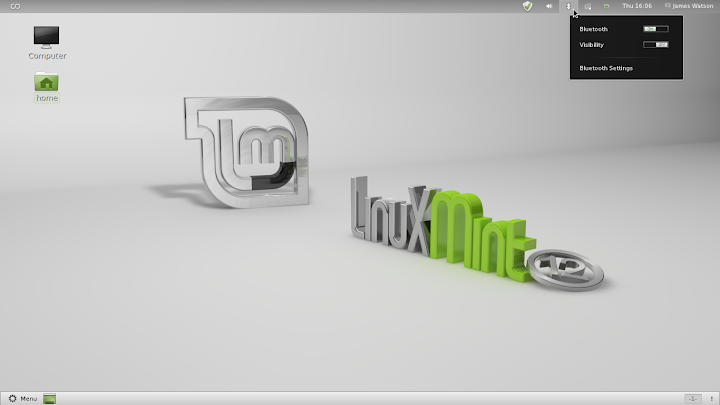
HP Pavilion dm1-4010ez
So, there you have it. I hope all of the detail was worthwhile - I'm certainly not going to be doing this on a regular basis, but I really wanted to show that installing Linux, whether it be openSuSE, Mint, or any of the other popular distributions, was not black magic, and really wasn't even all that difficult or dangerous.

What we have ended up with here is a very nice sub-notebook, it looks good, feels good, works well, and when we turn it on we can choose whether to run Linux Mint 12 (loud cheers in the background) or Windows 7 Home Premium (boos and hisses, and I am ducking lemons and rotten tomatoes being thrown from the cheap seats).
Next on the agenda: add the Cinnamon desktop, and compare it to Gnome and MGSE.

Tuesday, November 6, 2012

How To Set Up Linux On Your Computer System


How To Set Up Linux On Your Computer System Or Any Capable Linux Computer Basically.

If you'd like to have both Windows OS and Linux on the same computer, this is for you!!

Are you fed up with Microsoft Windows and ready to give Linux a try? Here's how to get started. This guide for Linux discusses who the Linux OS is right for, what you need to get started, and how to turn your Windows PC into a dual-boot computer so you can have the best of both worlds - Linux and Windows.
Why try Linux?

Linux will never be as popular a desktop operating system as Microsoft Windows or Mac OS X, but there are some good reasons to give Linux a try.

For starters, you can download and install Linux for free. Applications that run on Linux machines tend to be free as well, and they include PC essentials such as office productivity suites, image editing software, and video editing tools.

Though Linux is not immune to viruses, malware is rarely a concern in the Linux world, especially for home users. And because Linux is less of a PC resource hog than Windows and the Mac OS, it's ideal for use with a laptop, a netbook, or an older desktop.
Related Articles on Techworld

Finally, as Web services and HTML5-based apps play an increasingly dominant role in our computing lives--from music services such as Pandora to Yahoo Mail to Google Docs to Bing Maps to countless games--the operating system begins to play second fiddle to the Web. Linux is a dirt-cheap alternative to dropping $500 on PC that can run Windows 7.
Who should use Linux?

Linux can be a good choice for anyone, but two types of users are likely benefit most from Linux: power users and nontechnical users.

Power users will enjoy Linux, because it's a flexible, highly customisable OS that they can adapt to suit their needs in such areas as the look of the desktop or the ability to prevent any extra software from adding bloat to the system.

Linux is also great for nontechnical users who just want a computer that's easy to use, has many applications available for download, and doesn't require a lot of maintenance. Thanks to Linux distributions such as Ubuntu that are easy to install and use, Linux is no longer "difficult to use."
What is Linux?

Linux is a Unix-like open-source operating system that uses the Linux kernel as its base and comes packaged with basic software, including a lot of components from the GNU (pronounced Guh-new) project.

There is some debate among Linux users about whether it's correct to call the open-source operating system Linux or GNU/Linux to reflect the fact that Linux distributions are loaded with software from the GNU Project. GNU is another Unix-like operating system, but one that lacks a usable kernel. Typical pieces of GNU that you're likely to come across in Linux include the Bash shell and assorted command-line utilities, GNU Emacs, Gnu Image Manipulation Program (GIMP), GNOME, and GNASH (a Flash player replacement).
Know your components

Three main elements of a Linux operating system come up often in discussions of Linux: the distribution, the desktop environment, and the Linux kernel. These components, along with software from GNU, constitute the basic parts of your Linux distribution.

Distribution

The all-important decision in the Linux world involves figuring out which version (called a distribution or distro) you want to use. Options include popular distributions such as Ubuntu and Linux Mint that are relatively easy to install, as well as more-complex and customizable distros such as Arch Linux. To figure out what each distribution looks like and what it offers, consult the website DistroWatch, which offers screenshots, download links, and reviews for more than 300 Linux distros. According to DistroWatch, the five most popular Linux versions at this writing are Linux Mint, Ubuntu, Fedora, OpenSUSE, and Debian.

Take some time to poke around DistroWatch and read the descriptions of various Linux distributions to see what each offers, what they look like in a default configuration, and what others think of the OS. Linux newbies will probably do best with Ubuntu or Mint, as these distributions are easy to install and offer the fewest problems for first-time users.

You should also be aware that many distributions in the Linux world are built using other distributions as a base. Mint, for example, is based on Ubuntu, which is a variant of Debian.

To see whether any known problems exist for running Linux with your PC model, check out the user forums for your distribution. Though this usually isn't an issue, it does come up from time to time, just as it does with Windows.

If you're buying a new computer, check to see which hardware runs best with the distribution you want to use. Ubuntu, for example, has a certified hardware page that details which desktops, laptops, and notebooks are known to work well with Ubuntu.

The desktop environment

Your desktop environment is your system's user interface. It determines how windows and icons are styled and how you navigate through your system. Among the many different desktops available in the Linux world are Gnome, KDE, Xfce, and LXDE. Ubuntu maker Canonical released a new desktop interface in April 2011 called Unity, which is based on Gnome.

The desktop contains various components, but at this point it's enough to know that you are free to choose pretty much whichever desktop environment you want to use. Distributions such as Ubuntu, Mint, and OpenSUSE provide an array of different desktops that you can easily install. Ubuntu 11.10, for example, offers Unity, but you can easily install variants of Gnome. Another alternative is to use KDE in Ubuntu--either by downloading Kubuntu (a variation on the Ubuntu system that installs KDE as your default desktop) or by installing KDE in the standard version of Ubuntu.

The best choice for beginners is to stay with the default desktop environment for your distribution. But desktops in Linux are interchangeable; so as you become more comfortable using Linux, you can try out different desktops to see which one you like best.

Linux Kernel

The kernel - the software layer that acts as the go-between for your applications and your PC hardware - is the core of any Linux system. This is the component that you are least likely to have to deal with as part of maintaining your system, especially if you choose a beginner-friendly system such as Ubuntu or Mint. But as you delve into the Linux world, you'll probably find people talking about the kernel on forums and help sites, so it's helpful to know what the term refers to.

The stable version of the kernel at this writing is version 3.2.2. If you choose, you can update your kernel as new versions come out, but it's much simpler to wait for your particular distribution to roll out kernel updates.
Time to try Linux

Now that you have a sense of how some of the Linux distributions differ, it's time to try out a few and see what you think. Unlike with Windows, you don't have to buy a CD or purchase an access code; instead, you can just hop online and download any distro you want to try, for free. And if you don't have the bandwidth to download Linux, many distros will send you an installation CD by mail (usually for a nominal fee).

Many distros - including Debian, Fedora, OpenSUSE, Linux Mint, and Ubuntu - also offer downloadable live CDs. Live CDs let you run the operating system without installing it on your hard drive. That way you can get a better sense of what it will be like to use a particular distro. Live CDs tend to be less responsive (and to run slower) than the actual operating system. The main thing to focus on with live CDs is the look and feel of the interface and the way the system is organised.

To create a live CD you must download the OS and then create a disc image on a blank CD, external hard drive, or USB flash drive. If you've never copied or burned a bootable disc image, try Ubuntu first before moving on to other distros. Canonical has a convenient step-by-step online guide for downloading and creating an Ubuntu live CD using Windows or OS X.
Let's get serious

Okay, you've tried out a bunch of live CDs, and now you're ready to install Linux on your PC. Let's assume that you've decided to go with Ubuntu and that you're installing it on a Windows machine (yes, some people do install Linux on a Mac). If you are new to the Linux world and still rely on Windows for certain programs, or if you need to use Windows for your job, you can install Linux alongside Microsoft's OS in a dual-boot configuration. This way, each time you boot up your system, you can choose to run either Windows or Linux.

Ubuntu comes with a handy feature called Wubi (Windows-based UBuntu Installer) that lets you access Ubuntu inside Windows as if it were an application. Like a live CD, Wubi may cause Ubuntu to run a little bit slower than it normally would, but it will give you the chance to acclimate to Linux if you aren't willing to jump in right away.

Once you learn your way around the system, Linux is just as easy to use as Windows or Mac OS. But Linux differs from those systems, and consequently it takes some getting used to. For this reason, you may want to take your Linux transition slow.

The alternative is to adopt what my colleague Tony Bradley calls the scorched-earth option: Wipe out Windows and install your Linux distribution as the sole OS on your machine. This is the method I chose when I moved to Linux full-time, and I found that going this route was fairly easy. The only major drawback of this approach involves needing to run a piece of custom software built on Windows or OS X for your job. If that's your situation, you should probably go with a dual-boot solution.

Creating a dual-boot environment doesn't require much heavy lifting. Many Linux distributions provide step-by-step instructions for installing Linux on a Windows PC in a way that supports peaceful coexistence. Ubuntu offers dual-boot setup directions, as does OpenSUSE. Also, consult PCWorld's "How (and Why) to Partition Your Hard Drive" for advice on how to lay the groundwork for creating a dual-boot PC.
The terminal (mostly optional)

You can spend your whole computing life inside Linux and rarely have to open a command line prompt to get things done. Nevertheless, learning at least a few basic operations can be helpful, though doing so is entirely optional.

Bash (Bourne again shell) is the standard command line interpreter for most Linux distributions (as well as for Mac OS X), and it's a lot easier to use than you might think. Among the helpful commands that you may wish to learn are how to create empty files and directories (folders), how to search for and kill a running process on your system, how to view hidden directories, how to switch between directories, how to open files and applications, the 'locate' command, the 'find' command, and the 'grep' command. At some point you may also want to learn how to install an application from the command line; but with a system such as Mint or Ubuntu, that method should rarely be necessary.

You can find many novel uses for the command line, too. For instance, you can use Bash to run a text-only Twitter client called TTYtter, learn to use command-line text editors such as Vi or Emacs, try a simple to-do list program called Todo.txt, use Python as a handy calculator, browse the Web with the text-only browser Lynx, run system backups using Rsync, create text shortcuts (called aliases) for executing daily tasks, and automate tedious or repetitive tasks (such as backups) using Cron. All of these operations and programs are much simpler to use than you might think, and learning them will greatly enhance how you use your computer.

Even if you're not interested in the command line, you may need to access the Terminal to deal with occasional (but increasingly rare) hardware problems such as adjusting a laggy mouse driver. Otherwise, you can live happily inside Linux without ever opening the Terminal program.
Ubuntu Software Center

If you decide to go with Ubuntu as your distribution, you'll pick up most of your applications from the Ubuntu Software Center, an online store for downloading and installing applications and utilities. The Ubuntu Software Center began shipping with Ubuntu in 2009 and subsequent Ubuntu releases have included incremental improvements. The store currently offers numerous free software packages as well as some paid apps. Using the USC is as simple as searching for a program and clicking Install.

By default, Ubuntu comes with a lot of great software, including Mozilla Firefox and Thunderbird (email client), the Libre Office suite, Gedit text editor, and GIMP. Those applications also come with many other Linux distributions; or you can install them after initial setup. You can get a lot of popular third-party software for Linux, just as you can for Windows and OS X; examples include Google's Chrome browser, Skype, Spotify, and Scrivener - a popular word processor designed for professional writers. Much of this software, including Skype, Spotify, and Scrivener, tends to be marked "beta." But don't let that scare you off: All three work very well in Linux.

If you can't find a Linux version of the software you need, you can try running Windows apps in WINE, a program designed to handle that task inside Linux. WINE may not be able to run every program you throw at it. But if you absolutely need a piece of Windows software, and no Linux alternatives are available, give WINE a try.
Finding help

If you run into problems while using Linux - whether hardware issues, software installation problems, or something else - you can turn to numerous online forums for help. Typically each distribution maintains its own forum where you can seek out assistance, and many third-party sites are full of solid advice, too.

The best way to find help is to start with a simple Web search for the problem you're having. Searches often lead Ubuntu users to the official Ubuntu user forums, but Stack Exchange's Ask Ubuntu is also a good source for information.

When researching problems, you may find that the first few sites you visit may offer complex and over-the-top solutions that require 15 lines of code or mucking about with some file buried deep in your operating system. But chances are that any issues you come up against as a beginner will be comparatively trivial and easy to solve.

Consequently, the best way to research your problem is to assume that it can be solved with a few simple mouse clicks or less than one line of code entered at the command line. There are exceptions to that rule, of course; but if you begin by assuming that the answer to your problem is simple and exhaust all of the straightforward possibilities before moving on to far more complex solutions, you'll save yourself a lot of time and hassle.

These basic tips should help you get started with Linux. So give a few live CDs a try, and see what you think. You'll be surprised at just how useful a Linux system can be.

Friday, September 14, 2012

Application Engineer – Red Hat Linux - Permanent - London - TechWeekEurope UK


Application Engineer – Red Hat Linux - Permanent - London
TechWeekEurope UK
Application Engineer – Red Hat Linux - Permanent - London. Posted on September 15, 2012. Contract Type: Permanent City: London Company: Expedia Role: eBusiness / eCommerce Expert, Operator Salary: Competitive. Job Description: Role Description ...

Bodhi Linux 2.1.0 Released - OStatic (blog)


Bodhi Linux 2.1.0 Released
OStatic (blog)
Bodhi Linux 2.1.0 features five new themes, one of which actually came with Enlightenment. This is a fresh build of Enlightenment whose main improvement is "LESS CRASHING and IMPROVEMENTS TO NOT CRASHING." Whether Bodhi actually used the ...

From £40000 to £45000 per year + Up to £45k plus benefits - Career Engineer


From £40000 to £45000 per year + Up to £45k plus benefits
Career Engineer
Our client is looking for an experienced Linux developer to work on all aspects of the software lifecycle - Kernel, Linux, Embedded, software, c, device drivers, open source, England The successful candidate will be working on the next generation of ...

and more »

New Intel Chip Won't Support Linux - Centralia Chronicle


New Intel Chip Won't Support Linux
Centralia Chronicle
New Intel Chip Won't Support Linux Alex Williams - TechCrunch The Chronicle | 0 comments. TechCrunch. Intel will not support Linux in its upcoming chip for laptops and tablets. That leaves Windows 8 as the only operating system that will run on the ...

Red Hat: Linux on ARM is No Joke - Server Watch


Red Hat: Linux on ARM is No Joke
Server Watch
Red Hat is working together with the Linaro ARM community in an effort to build a common Linux kernel that will work across different ARM implementations. Burke stressed that it's important to have a standardized kernel in order to make it possible for ...

Intel: Clover Trail Atom chip won't work with Linux - PCWorld


Inquirer

Intel: Clover Trail Atom chip won't work with Linux
PCWorld
Intel apparently offered no real explanation for its decision not to support Linux, but the news is already causing considerable concern among users of the free and open source operating system. Betting on Windows 8. Clover Trail, of course, is an ...
Intel will not support Linux on its Clover Trail processorsOS News
IDF: Intel says Clover Trail will not work with LinuxInquirer
Intel declares Clover Trail Atom processor a "no Linux" zoneArs Technica
TechCrunch -Hot Hardware -Engadget
all 25 news articles »

Do We Need More Linux Kernel Developers? Oracle Thinks So [VIDEO] - InternetNews.com (blog)


Do We Need More Linux Kernel Developers? Oracle Thinks So [VIDEO]
InternetNews.com (blog)
With the rapid rate of innovation in Linux, there likely still is a need in many companies for more Linux kernel engineering experience and more Linux kernel developers too. It's a view that Wim Coekaerts, Sr. VP of Linux and Virtualization at Oracle ...

openSUSE Releases Updated openSUSE 12.2 Li-fe for Users in Education - eWeek


openSUSE Releases Updated openSUSE 12.2 Li-fe for Users in Education
eWeek
openSUSE is rolling out the latest version of the openSUSE 12.2 Linux for Education (Li-f-e) open-source operating system with a full range of features aimed at better serving students, teachers and school administrators. After a two-month delay ...

and more »

openSUSE releases new Linux version for schools - ITWorld Canada


openSUSE releases new Linux version for schools
ITWorld Canada
openSUSE has released an updated version of Li-f-e, its Linux variant targeted at educational institutions. The new release is built on openSUSE 12.2 and comes with a large amount of software (3.3 GB) bundled on the installation DVD. It features the ...

and more »

Senior / Software Engineer / Test Architect - C, Windows / Linux, Networking ... - ElectronicsWeekly.com


Senior / Software Engineer / Test Architect - C, Windows / Linux, Networking ...
ElectronicsWeekly.com
Can you offer an impressive academic record (excellent degree in Computer Science, Electronics, Physics or similar from a well ranked university) along with solid C programming abilities and a good understanding of Linux? This is a superb career ...

New Atom chip will not support Linux - PCR-online.biz


PCR-online.biz

New Atom chip will not support Linux
PCR-online.biz
Officially however, Intel's reasoning for the lack of Linux support is due to the fact that Clover Trail makes extensive use of P-states and C-states (used to control idle state and frequency respectively) presumably to improve power-performance, and ...

Intel says Clover Trail Atom CPUs can't run Linux - Geek


Geek

Intel says Clover Trail Atom CPUs can't run Linux
Geek
Intel sits in a pretty dominant position in the chip making business, with the exception of one sector: mobile devices. For smartphones and tablets ARM is the market leader due to its low power, high performance chip designs working so well for those ...

Bodhi Linux 2.1.0 arrives with new file manager - The H


Bodhi Linux 2.1.0 arrives with new file manager
The H
With the 2.1.0 update release, the developers of the minimal desktop distribution Bodhi Linux have introduced a new file manager, improved the login manager and given users four new themes for their desktop. Bodhi Linux is based on the Enlightenment ...

and more »

Contract Embedded Linux Engineer, Android, GNU, SOC, GIT - ElectronicsWeekly.com


Contract Embedded Linux Engineer, Android, GNU, SOC, GIT
ElectronicsWeekly.com
Contract Embedded Linux Engineer, Device Drivers, Android, GNU, GIT, SOC, Java required for a 6 month contract based in the Cambridge area - Embedded Linux, C/C++, GNU Linux tool chains, version control. Full software life cycle role including ...

From £27000 to £30000 per year + Benefits - Career Engineer


From £27000 to £30000 per year + Benefits
Career Engineer
My client is seeking to recruit a Windows and Linux customer support engineer and you will bring the below skill set: Essential:  Able to manage customer expectations whilst prioritising personal and Group set workload.  A strong ...

Thursday, September 13, 2012

Why You Should Attend LinuxCon Europe: My Top Five Sessions - Linux.com (blog)


Why You Should Attend LinuxCon Europe: My Top Five Sessions
Linux.com (blog)
Earlier this week we published the full schedule for LinuxCon Europe and Embedded Linux Conference Europe. In many ways, I think the technical content for LinuxCon Europe may be the best collection of speakers we've ever had. I wonder if the location ...

Why You Should Attend LinuxCon Europe: My Top Five Sessions - Linux.com (blog)


Why You Should Attend LinuxCon Europe: My Top Five Sessions
Linux.com (blog)
Earlier this week we published the full schedule for LinuxCon Europe and Embedded Linux Conference Europe. In many ways, I think the technical content for LinuxCon Europe may be the best collection of speakers we've ever had. I wonder if the location ...

and more »

Canonical Updates Ubuntu Linux Landscape - Server Watch


TechCrunch

Canonical Updates Ubuntu Linux Landscape
Server Watch
Canonical, the lead commercial sponsor of the Ubuntu Linux operating system distribution, is updating its Landscape systems management tool. For more information on Linux servers. The Greening of IT · Cloud Computing: Discover the Skills that Power the ...
Canonical Releases Updated Enterprise Management Solution for Ubuntu LinuxTechCrunch
Canonical Ubuntu management tool gets hefty upgradePC World Magazine

all 24 news articles »